Join a Test Meeting

Modified on Fri, 22 Nov, 2024 at 7:10 PM


Join a test meeting

Attending your first Webex meeting soon? Check that you're ready by joining a test meeting.
The test meeting runs on the Webex Suite meeting platform. For more information see, Webex App | About the Webex Suite meeting platform.
1

Go to https://www.webex.com/test-meeting.html.

2

Enter your name and email address, and then click Join.

3

If you don't already have the app installed, you're prompted to click the installer file. On Windows, click Webex.exe. On Mac, click Webex Installer.dmg.

Install the desktop app to get the full-featured meeting experience. If you’re not using a Mac or Windows computer, or you can’t install apps, don’t worry. You can still join right from your web browser by clicking Join from your browser .

4

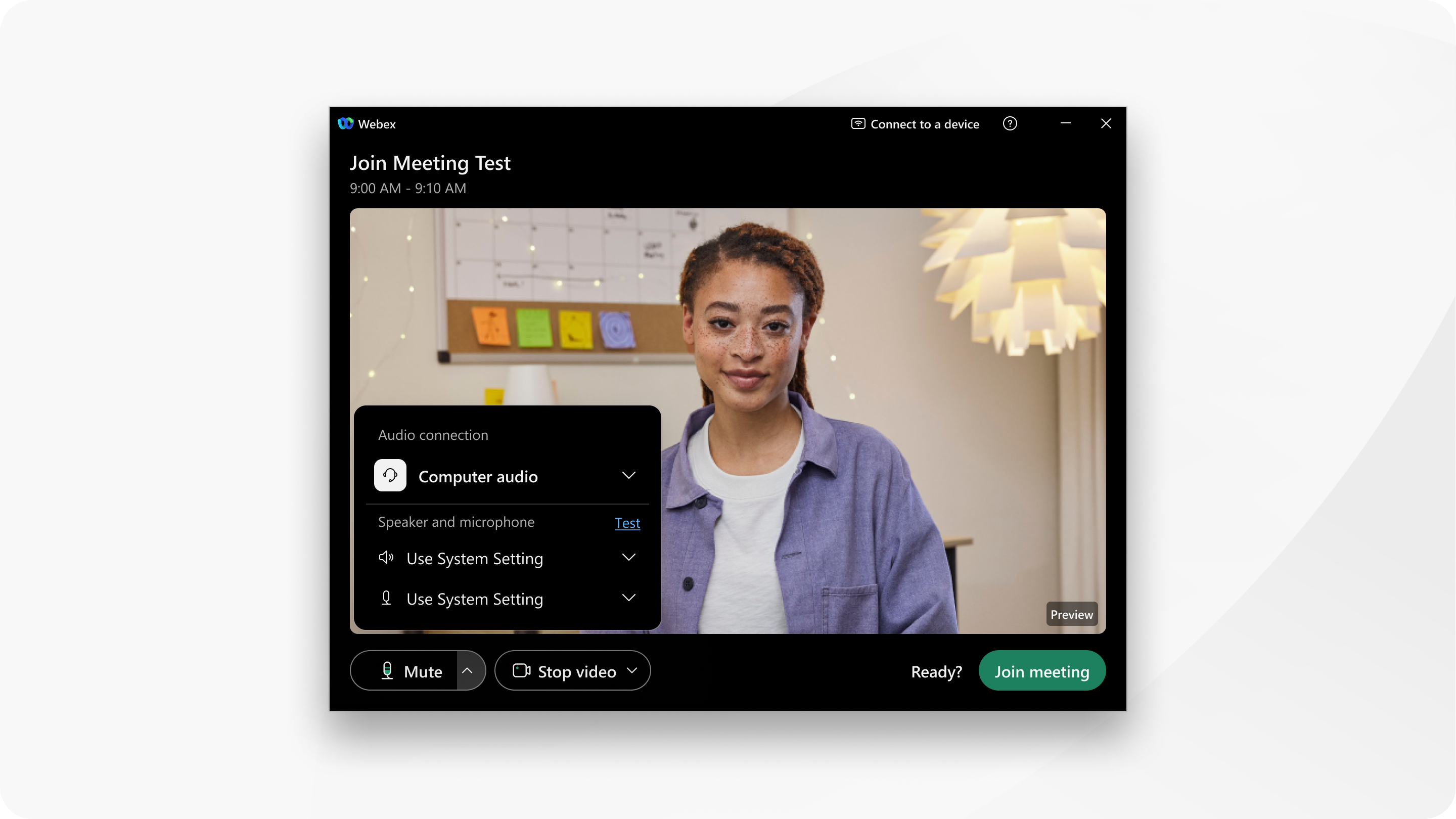
Next, choose how you want to hear everyone in the meeting.

join a test meeting
  • Computer audio (default)—Use your computer with a headset or speakers.
  • Call me—Enter a phone number, including the area code, that you want Webex to call you at.

    Check Connect to audio without pressing 1 to connect to the meeting audio immediately after you answer the call from Webex. Otherwise, you'll be prompted to press 1 on your phone to connect to audio.

    The app calls you after you click Join meeting.

  • Call in—If you prefer to use your phone for audio, dial in when the meeting starts. A list of the global call-in numbers is available after you join the meeting. Choose this option if your internet connection is slow.
  • Don't connect to audio—Use this option when you need to join a meeting and share content, and don't need audio. For example, you're in a conference room with your team, or someone already connected to the meeting from a video device.
5

If you want to join with your microphone muted, click Mute Mute.

You see Unmute when your microphone is muted. Click Unmute Unmute when you want to speak.

6

If you want to join the meeting with your video turned off, click Stop video Stop video.

You see Start video when your video is turned off. Click Start video Start video when you want to show your video.

7

(Optional) If you didn't turn off your video in the previous step and want to use a virtual background, click Video options  and choose a background.

8

Click Join meeting.

9

Click OK when you see the message about the host not being in the meeting.

10

Try out the available options.

11

When you're finished, click Leave meeting , and then select Leave meeting.

Was this article helpful?

That’s Great!

Thank you for your feedback

Sorry! We couldn't be helpful

Thank you for your feedback

Let us know how can we improve this article!

Select at least one of the reasons
CAPTCHA verification is required.

Feedback sent

We appreciate your effort and will try to fix the article