If you're on the go, you can join your meeting from your Apple or Android phone, tablet, or Apple watch using the Webex mobile app.
You'll be able to use video, chat with other participants, and share content.
| 1 | Tap Join meeting in your email invitation when it's time to join the meeting. 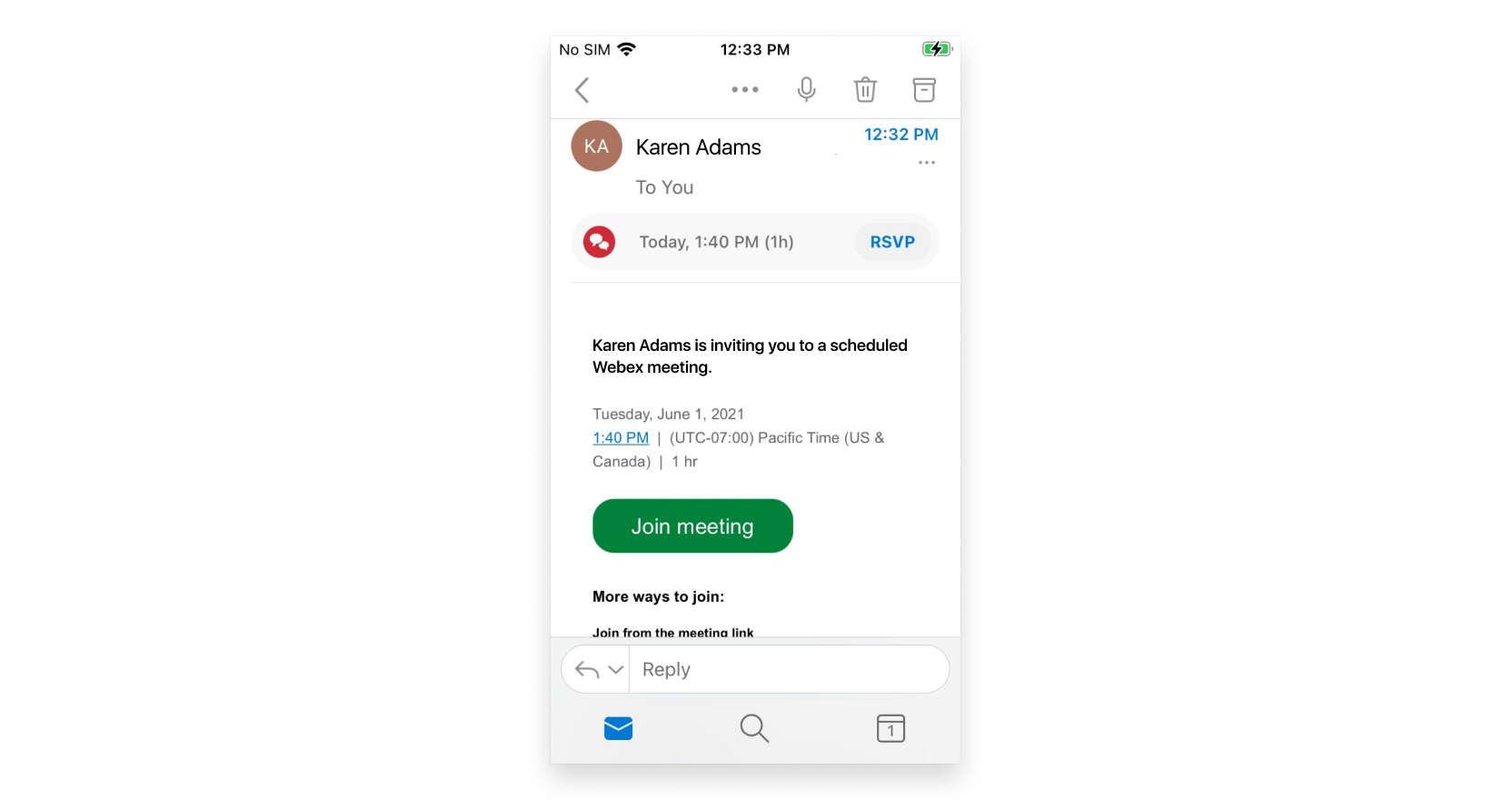 |
| 2 | Tap Download to install the Webex Meetings app and join the video conference. To join the meeting by phone only, tap the number on your screen. 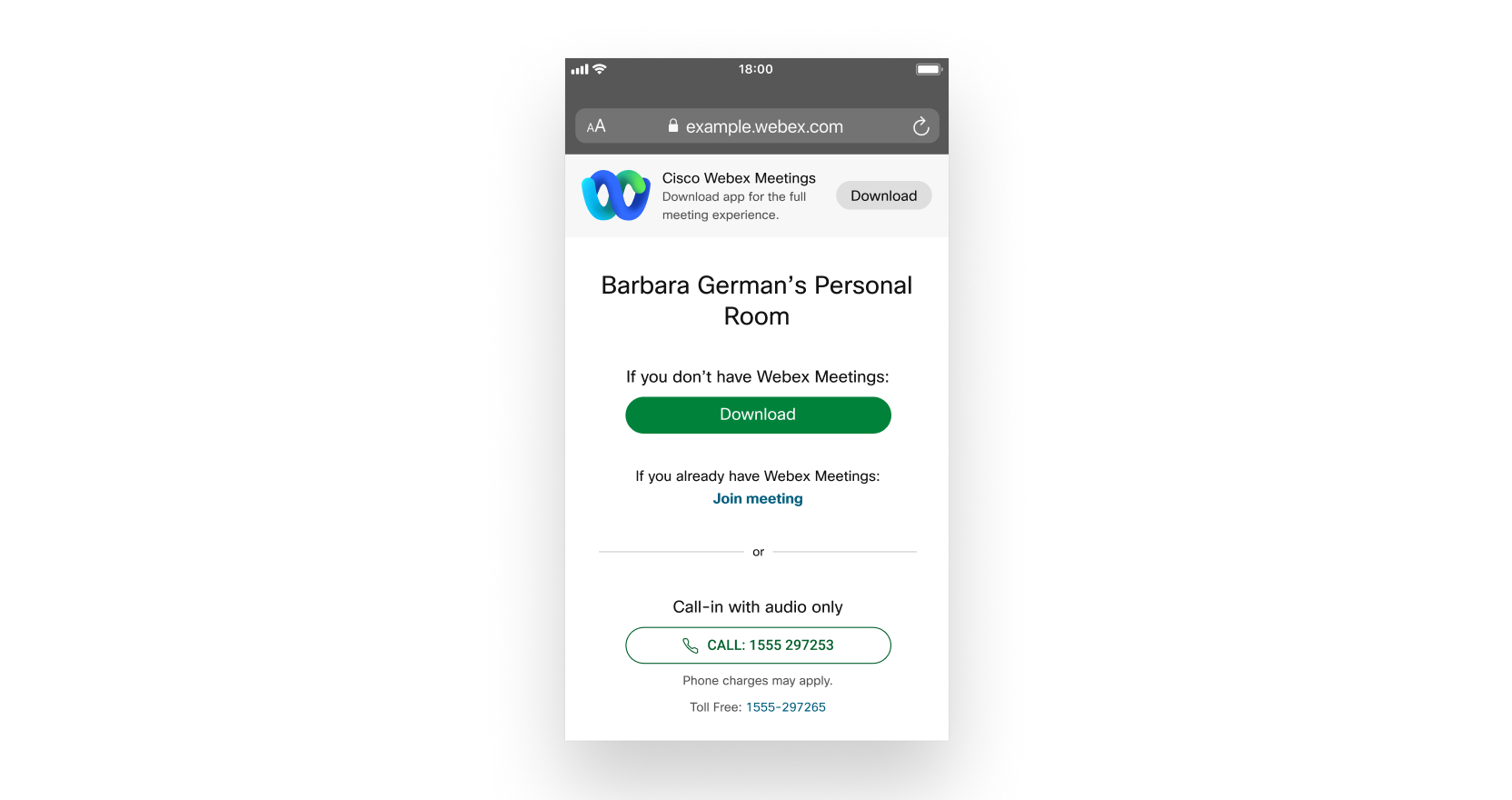 |
| 3 | Tap Open after the app installs and accept the Terms of Service and Privacy statement. If you’re joining a meeting for the first time on iOS, you must select the meeting link from your email invitation or calendar again to go to your meeting. |
| 4 | Edit your name as you want it to appear in the meeting and enter your email address. Then, check the Remember me check box if you don't want to have to enter your name again the next time you join a meeting. |
| 5 | Tap Sign in so you can access the full list of meeting features. Or if you just want to join the meeting quickly and don't need access to all the meetings features, tap Join as a guest. |
| 6 | Tap OK If necessary, enter the meeting password—it's in the email invitation—and tap OK. |
| 7 | Change your audio and video settings before joining your meeting. 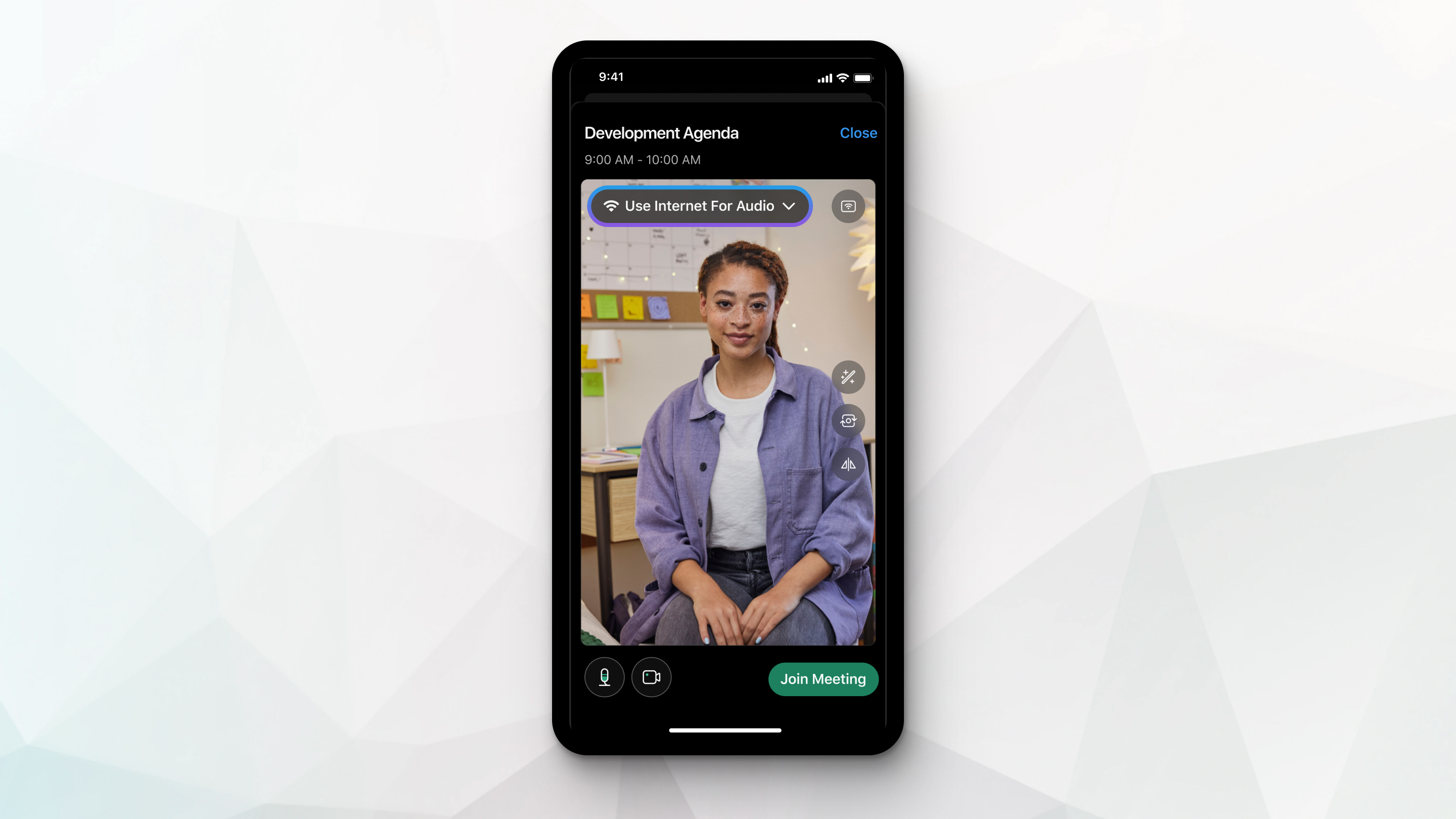
|
| 8 | Tap Start video to preview how you'll look to others before you join the meeting. |
| 9 | Click Connect to a device to join the meeting from a compatible video device. |
| 10 | Tap Join. |
Was this article helpful?
That’s Great!
Thank you for your feedback
Sorry! We couldn't be helpful
Thank you for your feedback
Feedback sent
We appreciate your effort and will try to fix the article