Test speaker and microphone - Webex

Modified on Fri, 22 Nov, 2024 at 7:11 PM

Test your speaker and microphone in Webex Meetings

Test your speaker and microphone to make sure that you can hear everyone, and everyone can hear you, when using your computer for audio.

Test your speaker and microphone in Webex Meetings

For 41.10 and later sites, see Select audio settings for Webex Meetings and Webex Events (new).

To see what version you're on, see Find your Webex Meetings version number.

1

To test while joining the meeting on WBS40.8 and later sites, click Settings in the lower-right corner of the preview window, and skip to Step 3.

2

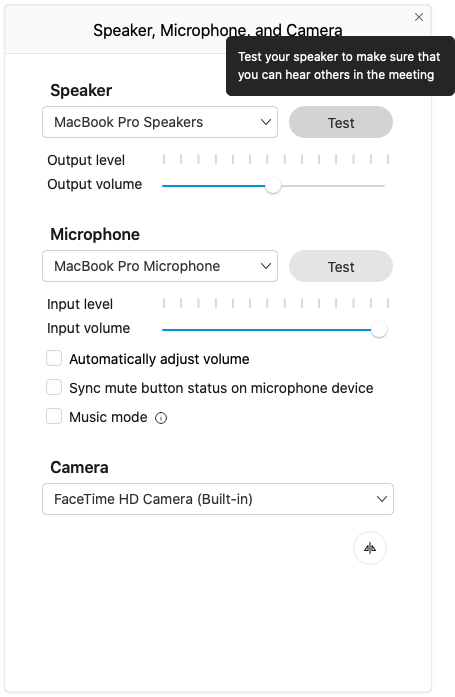
To test during the meeting, go to More options , and select Speaker, microphone, and camera.

3

In the Speaker menu, click Test.

If you don't hear anything, try changing the speaker device in the drop-down list, or adjusting the Output volume slider.

4

In the Microphone menu, click Test, and then speak into your microphone.

After a moment, a recording of your test will automatically play back to you.

If you don't hear the audio play back, try selecting a different microphone from the drop-down list, or adjusting the Input volume slider.

Was this article helpful?

That’s Great!

Thank you for your feedback

Sorry! We couldn't be helpful

Thank you for your feedback

Let us know how can we improve this article!

Select at least one of the reasons
CAPTCHA verification is required.

Feedback sent

We appreciate your effort and will try to fix the article